In today's fast-paced digital environment, ensuring efficient Wi-Fi connectivity is essential for productivity and seamless communication. This guide provides a comprehensive walkthrough on optimizing
Checking and Modifying WLAN AutoConfig Settings

The first critical step in optimizing your Wi-Fi performance involves verifying and adjusting the WLAN AutoConfig service. This service manages all Wi-Fi-related tasks on your Windows system, ensuring that your Wi-Fi adapter and connection settings are correctly configured. Start by opening the 'Services' application, accessible from the Start menu. Locate 'WLAN AutoConfig' in the list, and ensure that its status is set to 'Running' and the startup type is configured to 'Automatic'. Proper configuration here is vital as it automatically handles network profile creation, management, and security settings, optimizing connectivity performance.
Adjusting Power Management Settings for Network Adapters
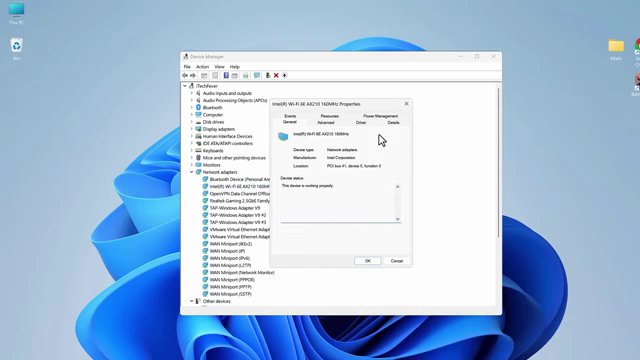
Efficient power management settings can significantly affect your Wi-Fi performance, especially for laptops. To eliminate disruptions caused by power-saving features, navigate to the 'Device Manager' and expand the 'Network adapters' section. Right-click on your Wi-Fi adapter, select 'Properties', and navigate to the 'Power Management' tab. Uncheck the option labeled 'Allow the computer to turn off this device to save power'. Disabling this feature ensures that your Wi-Fi connection remains stable, even during extended periods of inactivity.
Review and Test Network Configuration Changes
After adjusting the necessary settings, it's crucial to test your Wi-Fi to ensure the changes have successfully improved performance. Start by reconnecting to your Wi-Fi network and performing a speed test using a reliable online service. Monitor for any connectivity improvements or changes in speed. Additionally, checking your network's 'Status' through the 'Network & Internet' settings can provide insights into current bandwidth usage and help in further troubleshooting if needed.